Need an email address for a quick sign-up, but don't want spam in your real inbox? A temp mail address solves that in seconds. This guide shows you exactly how to use TMaily, from getting your address to receiving verification codes, with screenshots for every step.
Quick answer: Open tmaily.com, copy the email address shown at the top, paste it into any sign-up form, and your emails will appear in the inbox instantly. No signup, no refresh.
Step 1: Open TMaily and Get Your Temp Email
Go to tmaily.com. A free temporary email address is created for you automatically within seconds. You don't need to type anything, create an account, or give any personal details.
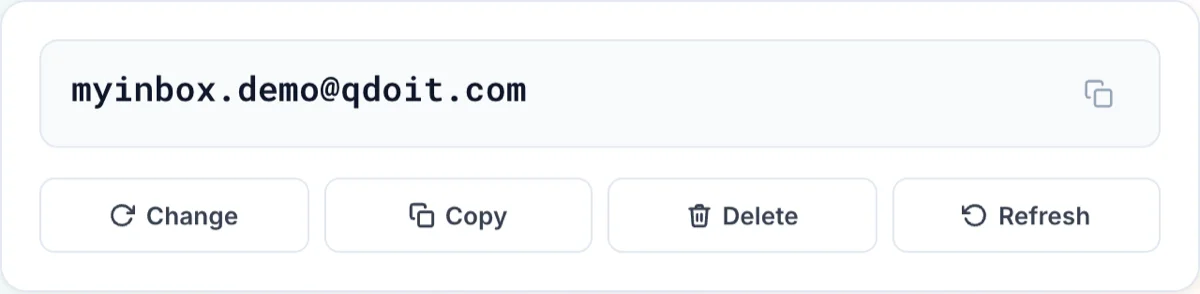
You'll see your new address in the box at the top of the page.
Step 2: Copy Your Address
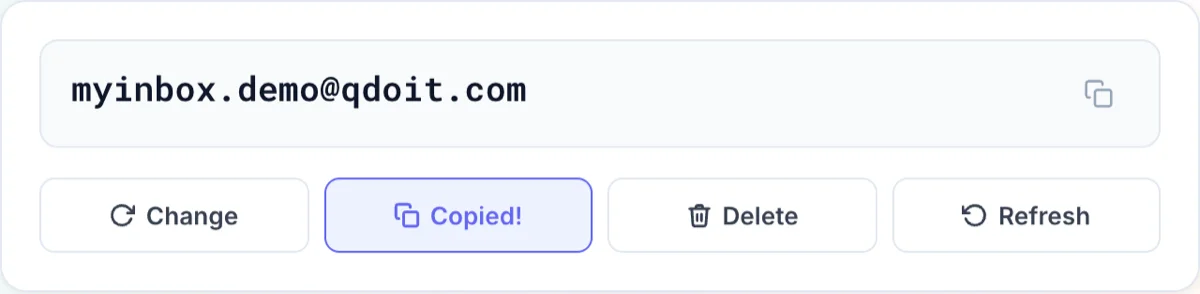
Click Copy (or the copy icon next to your address). Your temp email is now on your clipboard, ready to paste.
Step 3: Paste It Into Any Sign-Up Form
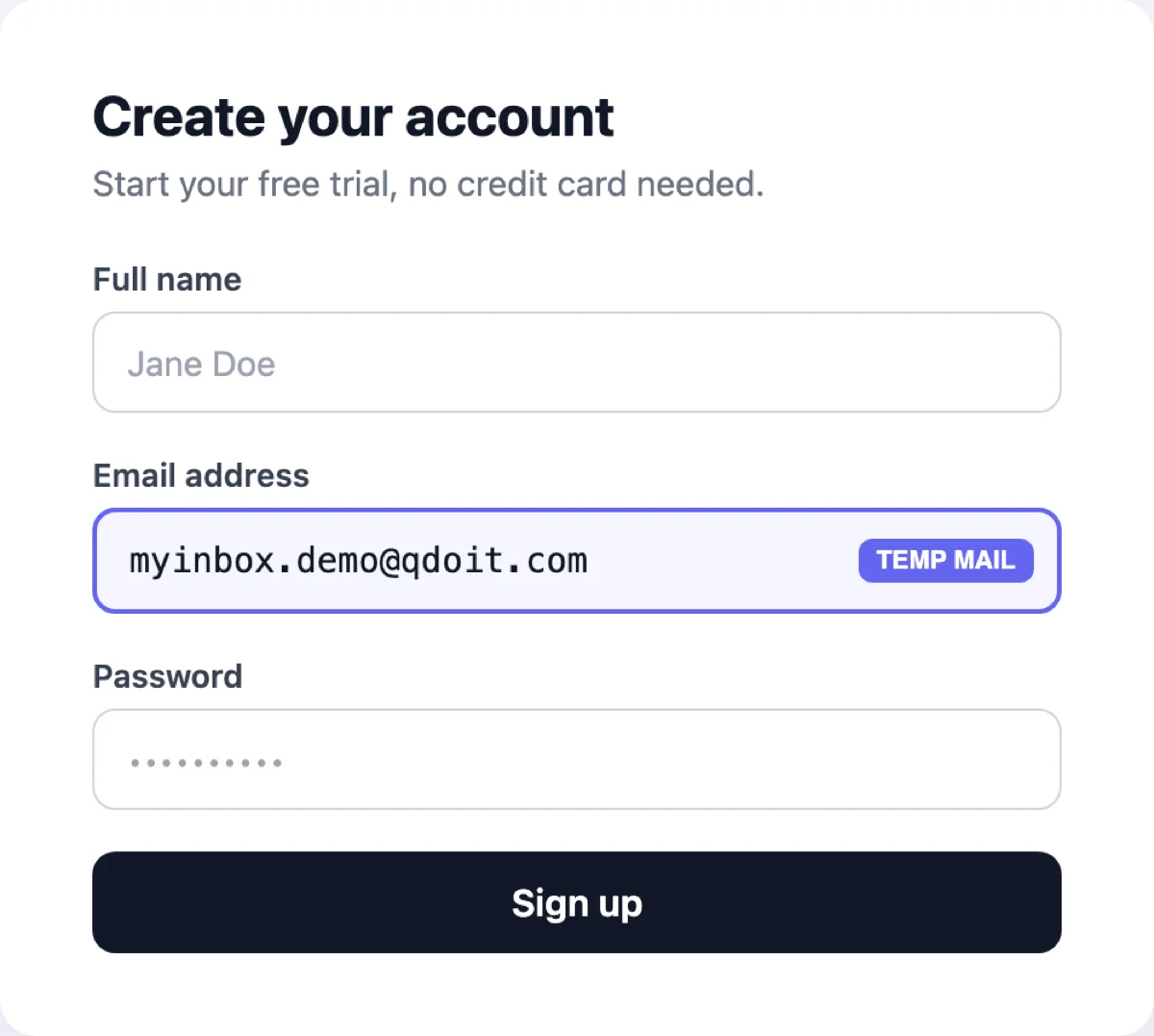
Paste the address wherever a website or app asks for your email: a free trial, a download, a forum, or a social media sign-up. Then submit the form as usual.
💡 Tip: Keep the TMaily tab open while you sign up, so you can see the email the moment it arrives.
Step 4: Receive Emails Instantly (No Refresh Needed)
Go back to TMaily. Your email appears in the Messages inbox in real time, the moment it arrives. You don't need to press refresh.
Click the message to open it. You can read the full email, copy your OTP or verification code, and download attachments (up to 10 files per email).
Verification links are detected automatically. If the email contains a confirmation link, TMaily shows it in a highlighted Verification link box at the top of the message. Click Open link to finish your sign-up in one click, with no need to search through the email.
🛡️ Every email is shown in a sanitized and isolated view to keep you safe while you read.
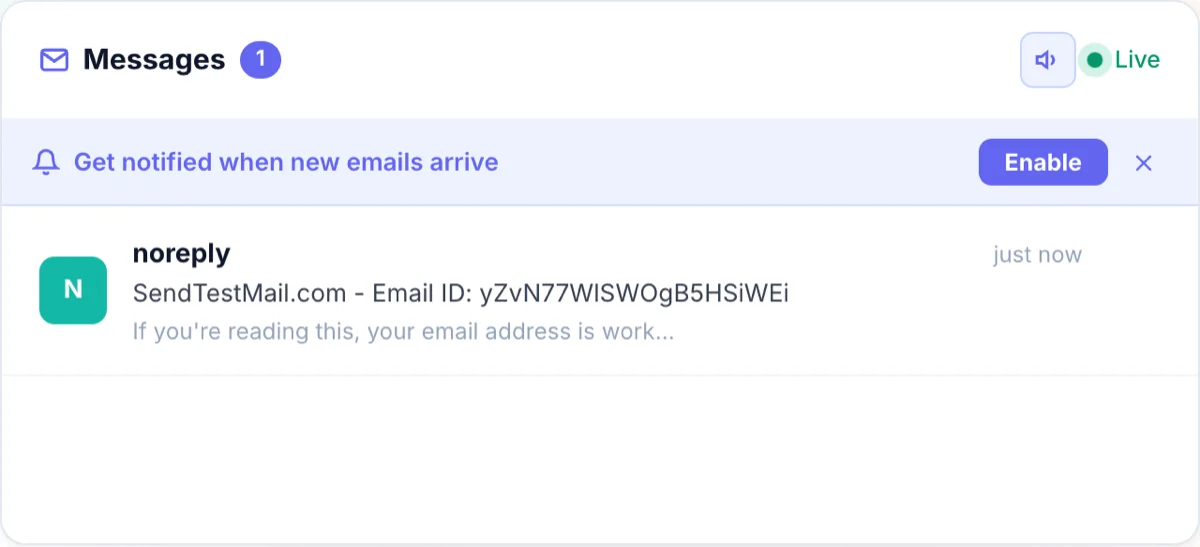
🔔 Tip: Click Enable on the notification bar to get a browser alert when new emails arrive, so you can switch tabs without missing your code.
Bonus: Choose a Custom Temp Mail Address
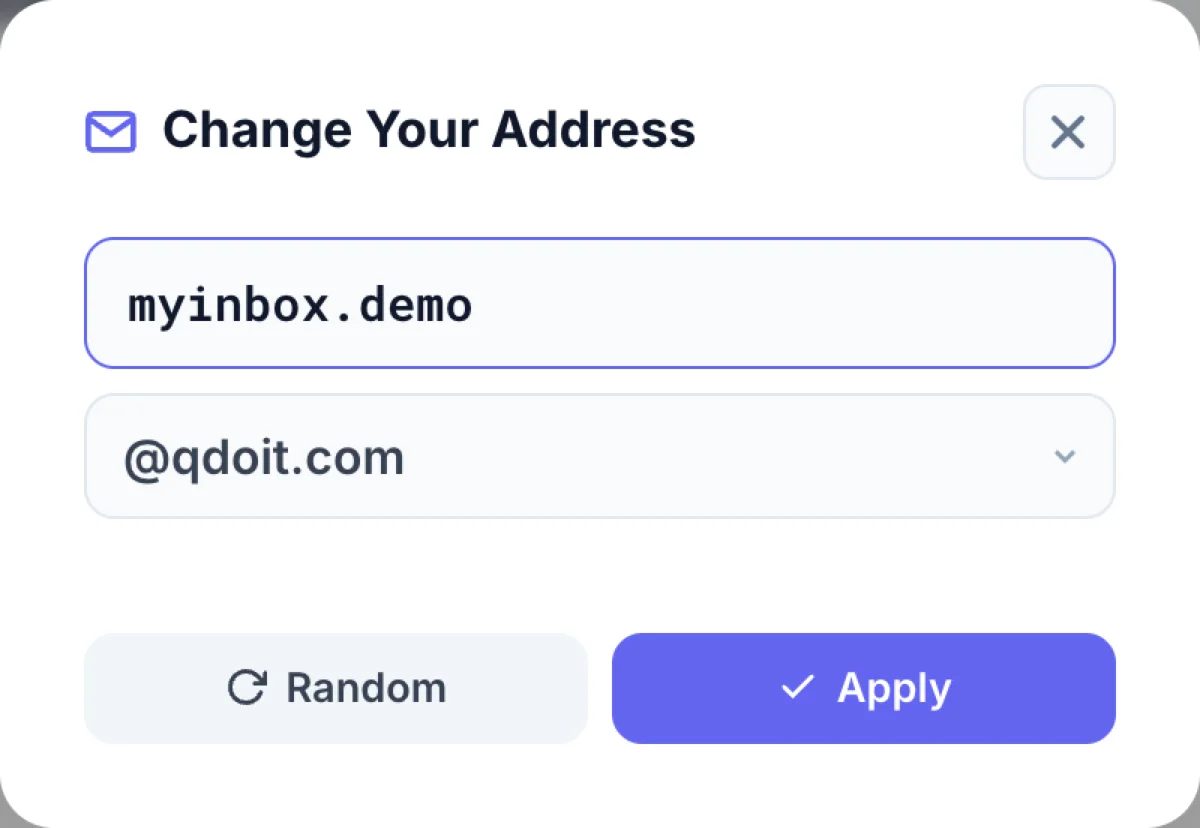
Want an address that's easier to remember? Click Change to pick your own username and domain.
- Use letters, numbers, dots, underscores and hyphens
- 3 to 30 characters
- Choose from different email domains
How to Delete Your Temp Email
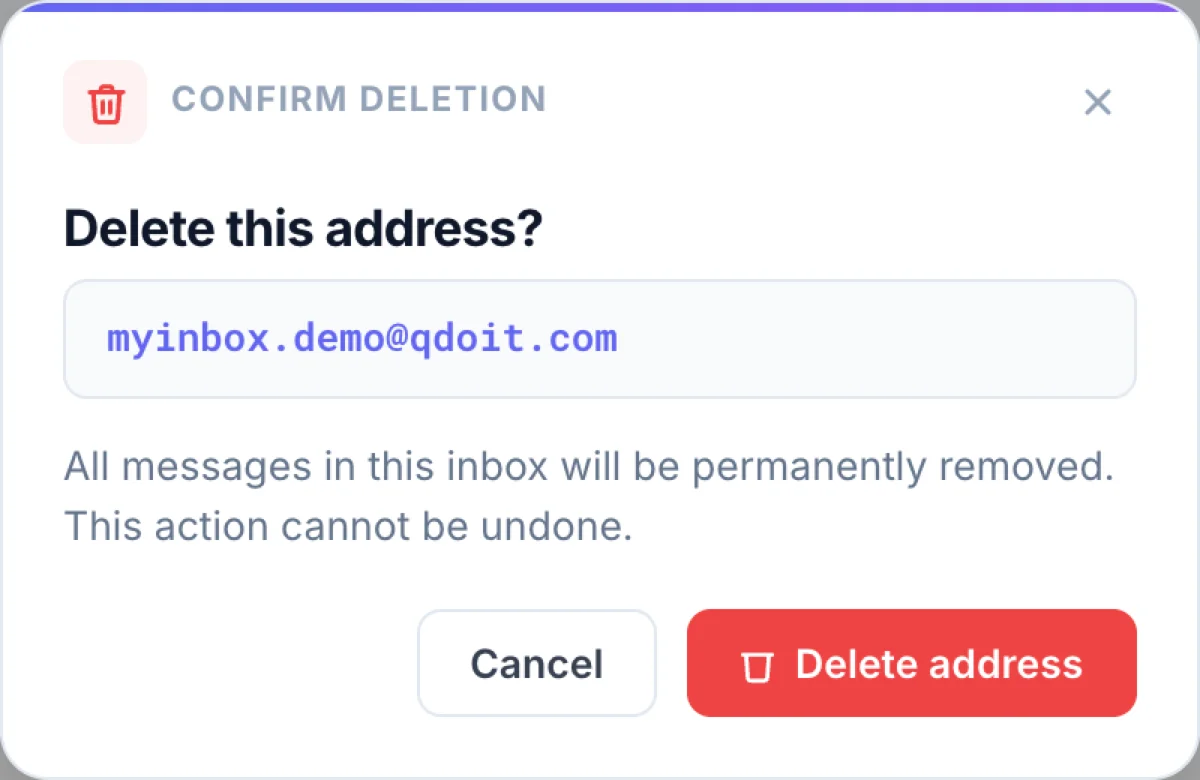
Done already? Click Delete, then confirm. All your messages are removed and you get a fresh address right away.
If you don't delete them, TMaily deletes your messages automatically after 24 hours, so there's nothing to clean up.
Tips for Using Temp Mail
- ✅ Use it for: free trials, downloads, newsletters, forum sign-ups, app testing, and one-time verification codes
- ❌ Don't use it for: banking, work, or any account you'll need to recover later. Messages are deleted after 24 hours.
- ⏱️ Codes expire fast: keep the tab open so you catch OTP codes the second they arrive
- 🔁 Need a new address? Click Change to get a fresh one (up to 10 per hour)
Frequently Asked Questions
Do I need an account to use temp mail? No. TMaily creates your inbox as soon as you open the page. There's no registration and no password.
How fast do emails arrive? Instantly. TMaily uses real-time delivery, so emails appear in your inbox the moment they arrive, with no refresh needed.
How long can I use my temp email? Your messages are kept for 24 hours, then deleted automatically. You can delete them sooner with the Delete button.
Can I choose my own email address? Yes. Click Change to pick a custom username (3–30 characters) and choose a domain.
Can I send emails from TMaily? No. TMaily is receive-only, which protects your privacy and prevents abuse.
Is temp mail free? Yes, TMaily is 100% free.
Ready to try it? Get your free temp mail now →